Włodawa Cultural Centre collects the most important information for viewers here: opening hours, cinema tickets and regulations. The WDK office runs from Monday to Friday from 8:00 to 3:00 and the cinema plays from Wednesday to Sunday. Below you will also find instructions for booking and buying tickets online.
WDK — Office part
| Monday | 8.00 – 15.00 |
|---|---|
| Tuesday | 8.00 – 15.00 |
| Wednesday | 8.00 – 15.00 |
| Thursday | 8.00 – 15.00 |
| Friday | 8.00 – 15.00 |
| Saturday | – |
| Sunday | – |
WDK – cinema
| Monday | – |
|---|---|
| Tuesday | – |
| Wednesday | 16.00 – 21.00 |
| Thursday | 16.00 – 21.00 |
| Friday | 16.00 – 21.00 |
| Saturday | 16.00 – 21.00 |
| Sunday | 16.00 – 21.00 |
Kino – cinema money
| 2D Seanse | 30 minutes before the show |
|---|---|
| 3D Seanse | 45 minutes before the screening |
| (cance of cinema) Wednesday – Thursday | 14.00-19.30 |
| (cance of cinema) Friday – Sunday | ≈16.00*-19.30 |
Kino - price list
| Normal | 20€ |
|---|---|
| Relief | 17zł |
| Group | 15zł |
- Reduced ticket are entitled to: school youth (valid student or student card), pensioners, pensioners, invalids, honorary blood donors, parents with children for fairy tales and family films.
- Group Ticket concerns groups of at least 15 persons.
- Włodawa Cultural Centre reserves that the aforementioned ticket prices for film screenings may be changed at the express request of the film distributor.
- Włodawa Cultural Centre will keep you informed of changes in ticket prices through available information channels.
- The price of film screening tickets is valid from 1 December 2022.
*Kasa cinema open one hour before the screening or event
WDK Cinema Regulations
The Rules of Procedure lay down rules for the use of cinema services conducted by Włodawa Cultural Centre, hereinafter referred to as ‘Kinem’. Its aim is to ensure efficient service and comfort and safety of the viewers. All persons using or residing in Kina services must comply with the Rules of Procedure.
Amendment of the content of the Regulations of 14.10.2026
- Buying a ticket means accepting the Rules made available before making the purchase.
- To the price of the ticket purchased via the Internet, the payment service fee is charged by the operator Przelewy24. The amount of the fee and the total amount to be paid shall be given before the purchase is approved.
- We ask for a thoughtful purchase. Cinema does not accept ticket returns due to the viewer's resignation from the screening. In the case of a ticket purchased online for a screening within the specified time limit, the consumer shall not be entitled to statutory withdrawal from the contract in accordance with the Article. 38 paragraph. 1 point 12 of the Consumer Rights Act of 30 May 2014. This provision does not restrict the right to complain or claims resulting from the cancellation of the screening, failure or improper performance of the service by the Cinema.
- The ticket box is opened 30 minutes before starting each session.
- Access to the cinema room is possible only after a valid ticket is shown.
- The ticket is valid only for the screening whose title, date and time are indicated on it.
- The ticket must be retained for the entire duration of the screening and shown on request during the re-check.
- One ticket entitles one person to participate in the screening.
- The viewer takes the seat indicated on the ticket.
- The staff may refuse to enter the cinema room or ask for her to leave a person who does not show a valid ticket.
- Group tickets are available to groups of at least 15 people.
- Reduced tickets are granted to students, students, pensioners, honorary blood donors and persons with disabilities, upon presentation of a valid document confirming entitlement to the relief. Family tickets are available to the parent or parents participating with the child or children in a screening of a film for children or a family film. The price of the family ticket indicated in the price list applies to one person.
- There is a ban on shooting and recording an image or sound without Kin's permission. In particular, it is prohibited to record displayed films, advertisements and announcements. The prohibition applies to the use of registration devices, not to the mere possession of a phone or other device.
- Cell phones and other light or sound emitting devices should be switched off for the duration of the screening. This obligation shall not apply to equipment necessary for health or disability reasons and shall be used as least disruptive as possible.
- There is a ban on smoking, the use of electronic cigarettes and other similar devices throughout the Kina area, as well as alcohol consumption and the use of drugs.
- Persons under the influence of alcohol or narcotics shall not be admitted to the cinema room.
- Animals are not allowed in the cinema room. The prohibition shall not apply to assist dogs or dogs trained as assist dogs if the conditions laid down in the applicable legislation are met.
- Service may refuse to enter or ask to leave Cinema persons who disturb order, threaten the safety of others, behave aggressively or use offensive or vulgar words to viewers or employees. Spectators are obliged to follow legitimate order and safety instructions.
- The hour of the screening given in the repertoire means the beginning of the block of advertisements and announcements. The screening of the film begins after it is finished.
- The reception of 3D projection may depend on the individual visual characteristics of the viewer. The projection may cause discomfort or discomfort. If such symptoms occur, it is recommended that you stop watching and inform the user. This provision does not exclude or limit the liability of the cinema under the applicable rules.
- The rules of procedure shall be made available to the public before the purchase of the ticket. The cinema may make changes to it due to changes in the laws or reasonable organisational changes concerning service and safety. The new version of the Rules of Procedure shall be made available before its entry into force, indicating the date of application. The amendments shall be without prejudice to the rights arising from previous tickets purchased. In cases not governed by the Rules of Procedure, the applicable law shall apply.
Ticket booking instructions
Book seats in the WDK ticket system. The booking option is selected in the basket summary.
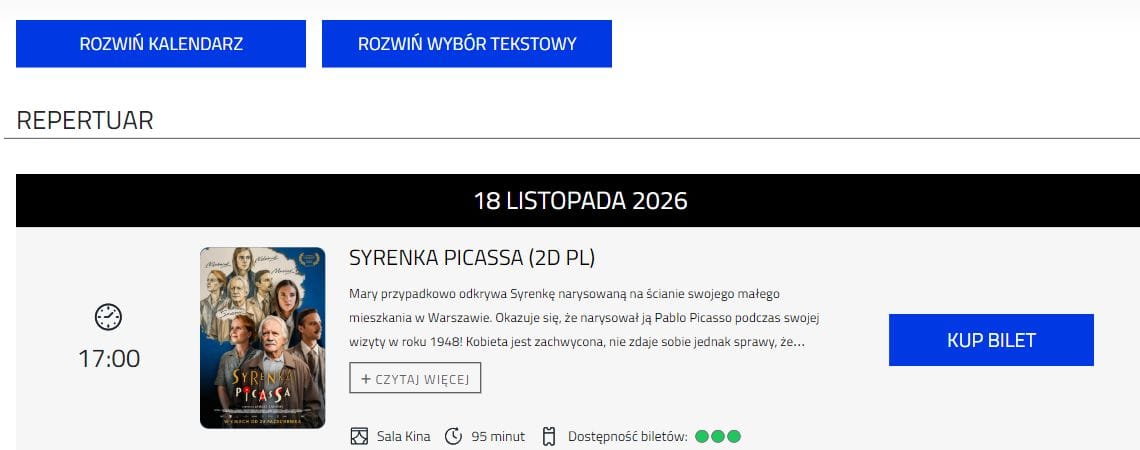
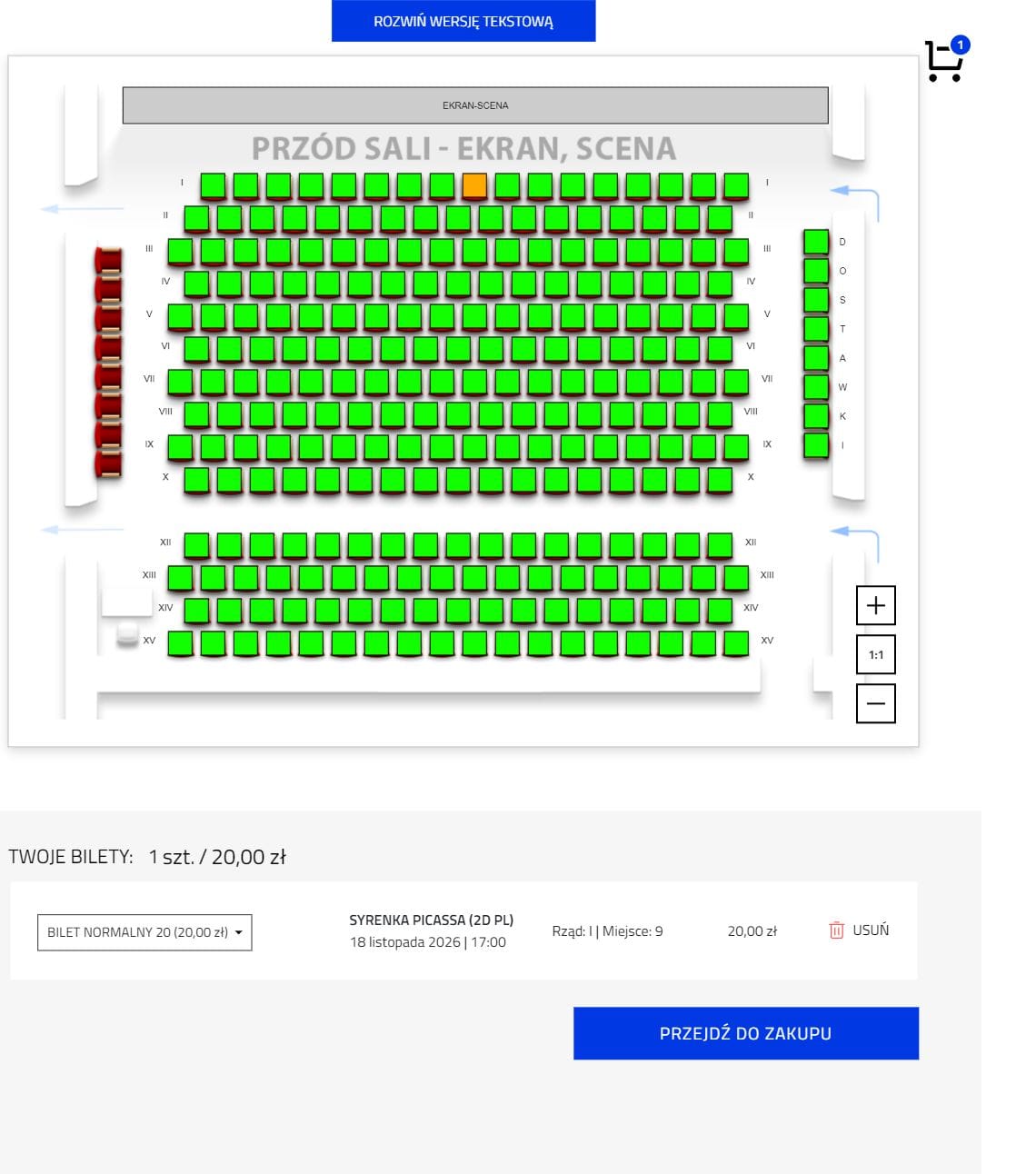
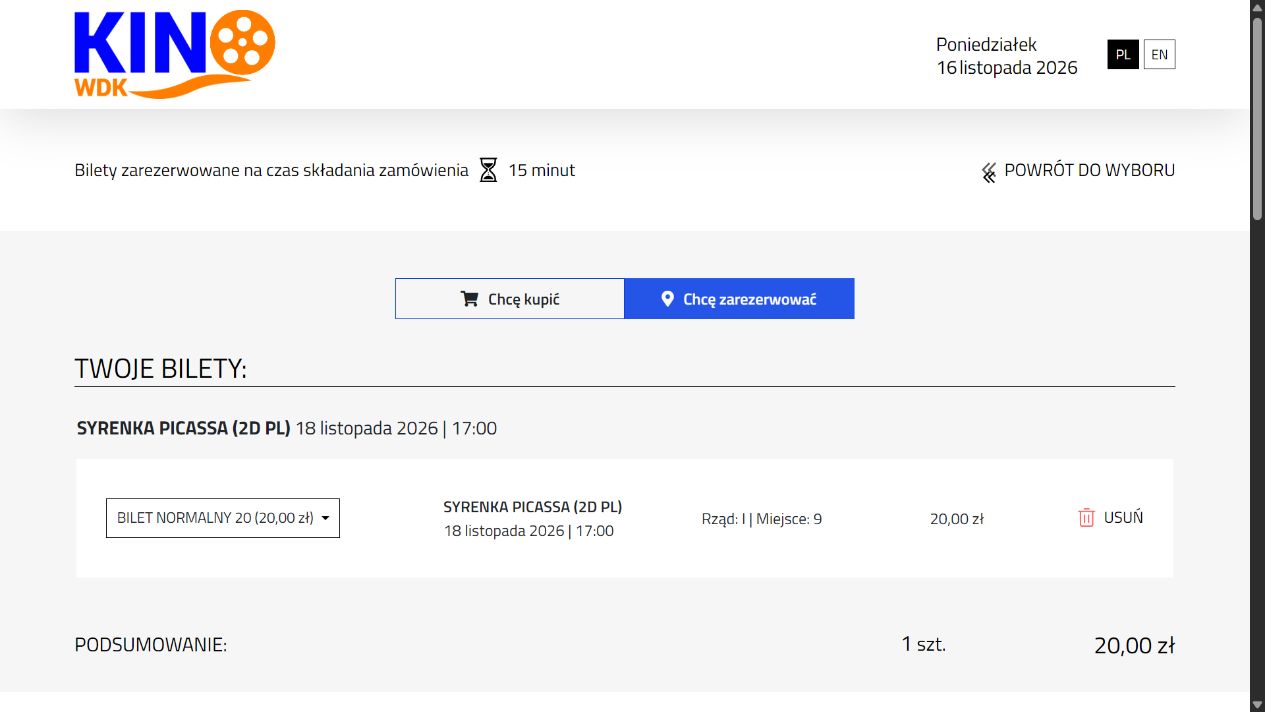
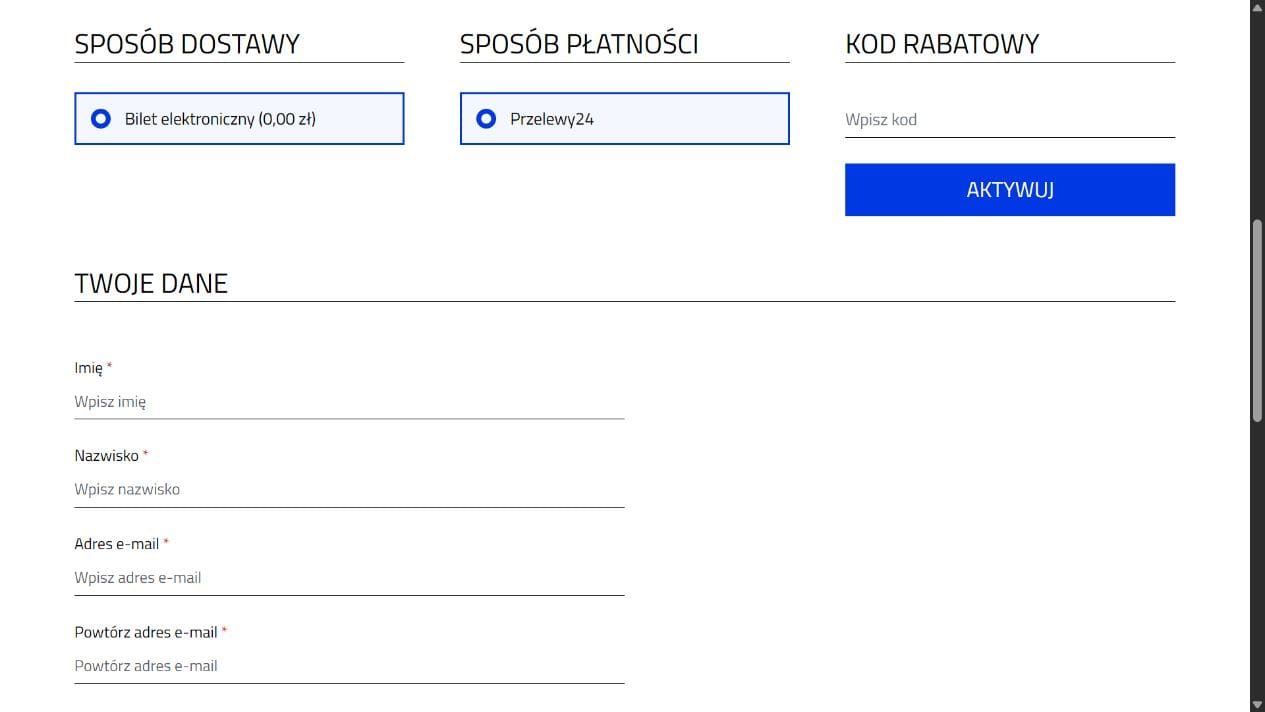
The dumps present an interface available on 16 November 2026. The title of the screening, term and prices are exemplary. Click the picture to enlarge it.
1. Select event and date
Open ticket system WDK. Find the event in the repertoire and check the date and time. You can also use the “Expand Calendar” and “Expand Text Selection” buttons. Click “Buy Ticket” at the selected date. This button also starts booking.
2. Choose your place and type of ticket
Click the available space on the hall plan. Selected tickets will appear in the basket under plan. Check the government, location number and price on each ticket. If you are relieved, choose the right type of ticket from the basket list. The Remove button allows you to remove the ticket. Then click “Go to purchase” — also if you want to book seats. You will find the button “Expand text”.
3. Check “I want to book”
In the top part of the summary, select “I want to book”. Check the title of the event, date, hour, selected seats and types of tickets. Just adding seats to the basket does not finish the booking.
4. Complete viewer data
In the “Your Data” section, complete the required fields: first name, last name, email address, repeated e-mail address and locality. Check the email address in particular.
5. Check data and click “Book”
Read the electronic ticket sales policy by opening “Read More” and mark its acceptance. Check the summary and then click “Book”. Follow the system messages and check the booking confirmation and the ticket redemption date specified therein.
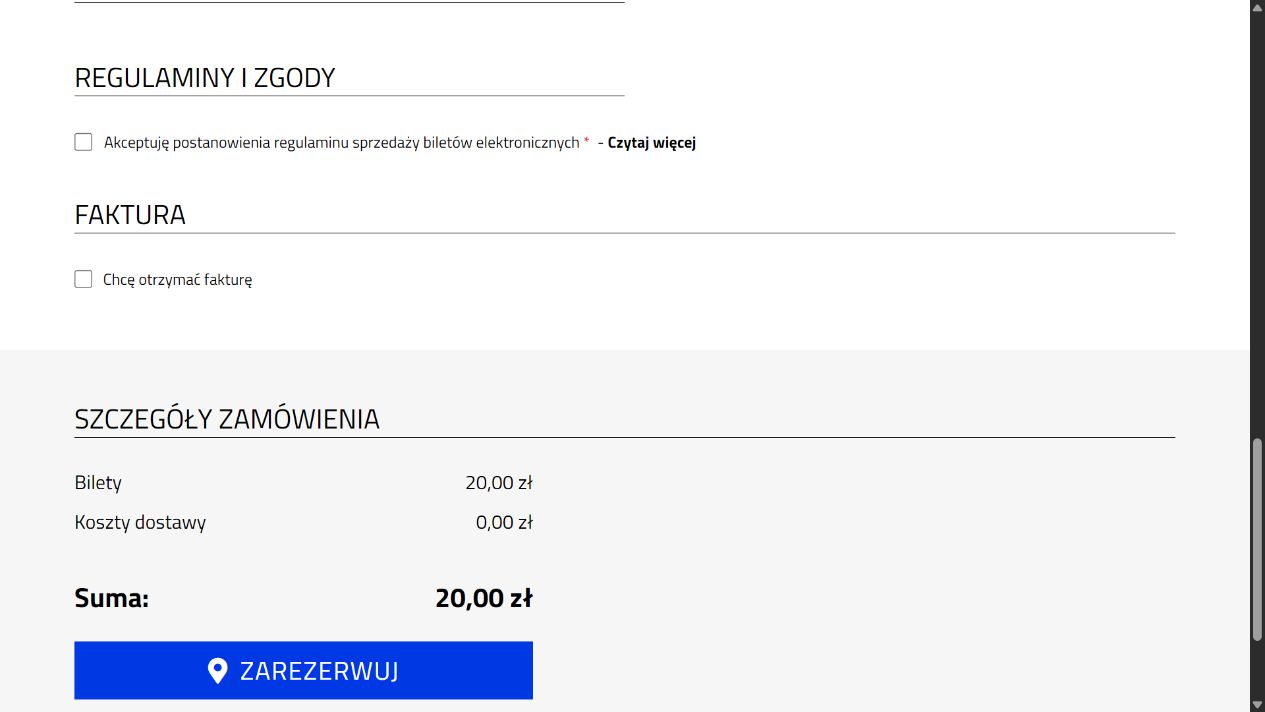
The system displays information about temporary blocking of places for placing orders. Complete the form before the specified time.
Ticket purchase manual
Buy an electronic ticket in the WDK ticket system. You can choose the purchase option in the basket summary.
The dumps present an interface available on 16 November 2026. The title of the screening, term and prices are exemplary. Click the picture to enlarge it.
1. Select event and date
Open ticket system WDK. Find the event in the repertoire and check the date and time. You can also use the “Expand Calendar” and “Expand Text Selection” buttons. Click “Buy Ticket” at the selected date. This button also starts booking.
2. Choose your place and type of ticket
Click the available space on the hall plan. Selected tickets will appear in the basket under plan. Check the government, location number and price on each ticket. If you are relieved, choose the right type of ticket from the basket list. The Remove button allows you to remove the ticket. Then click “Go to purchase” — also if you want to book seats. You will find the button “Expand text”.
3. Check “I want to buy”
In the top part of the summary select “I want to buy”. Check the title of the event, date, hour, selected seats and types of tickets.
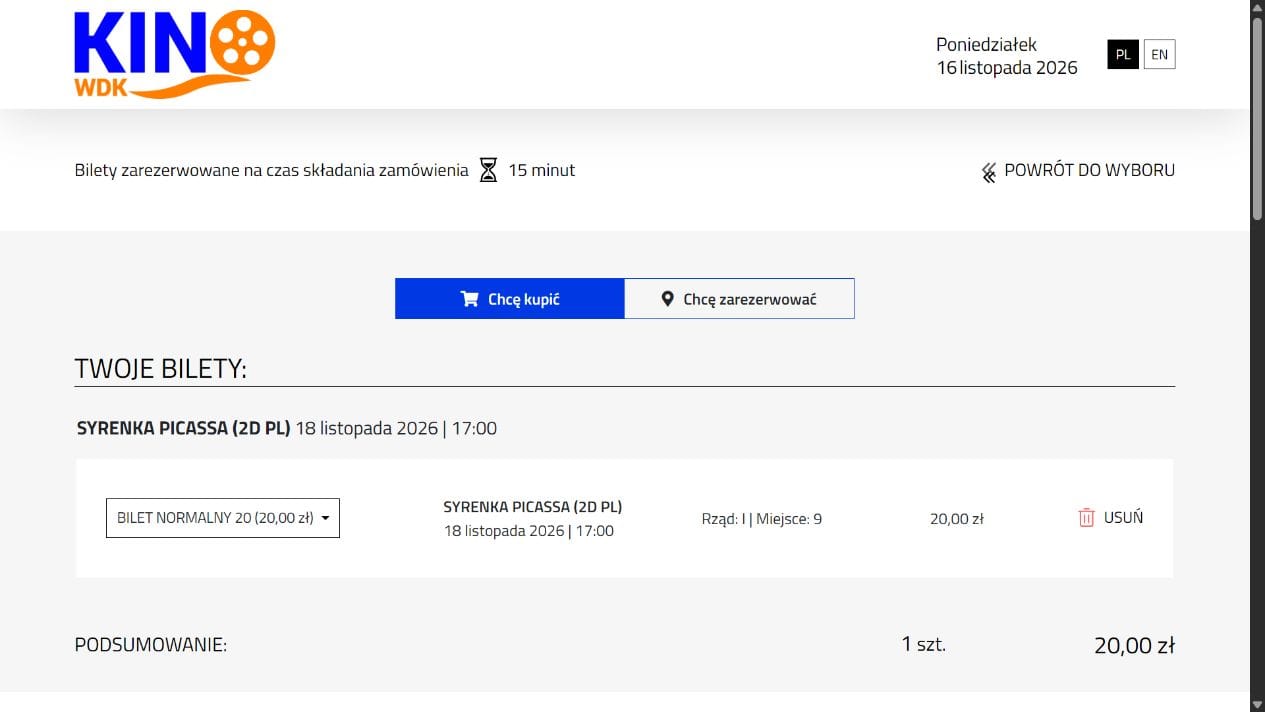
4. Complete viewer data
In the “Your Data” section, complete the required fields: first name, last name, email address, repeated e-mail address and locality. Check the email address in particular. The delivery section shows ‘Electronic Ticket’ and the payment section shows ‘Transfers24’. If you have a discount code, enter it in the appropriate box and click “Activate”.
5. Check summary and go to purchase
Read the electronic ticket sales policy by opening “Read More” and mark its acceptance. If you need an invoice, check “I want to receive an invoice” and complete the required data. Check the order details and total amount. Click “Go to purchase” and follow the payment system messages. After the purchase, check the confirmation and electronic ticket.
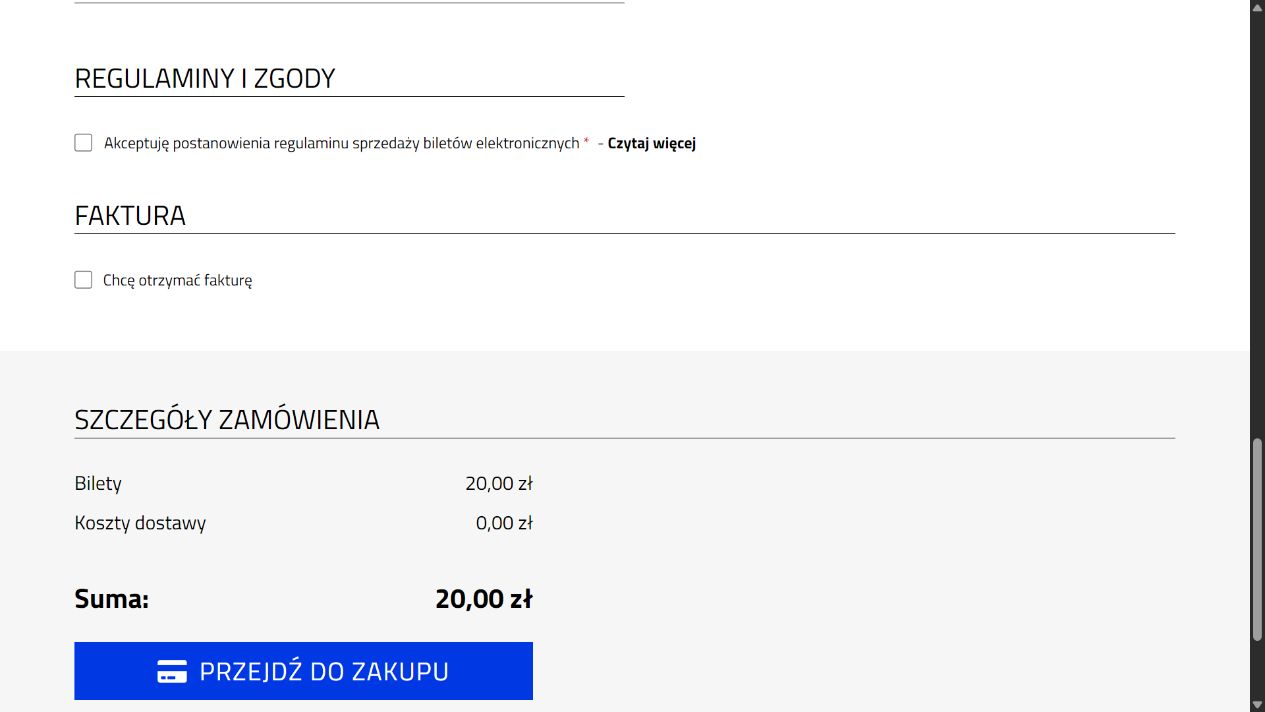
The system displays information about temporary blocking of places for placing orders. Complete the form before the specified time.
